Drawer app icon

Drawer One button. Every app.

Your Action Button can only open one thing. Drawer lets it open all your favorites: hold the button, then tap any app or shortcut.

Drawer on the App Store Coming soon to the App Store

Free for iPhone. No account, no ads, no tracking.
One button

Hold the button. Tap any app.

Your Action Button normally does just one thing. Set it to open Drawer, and it opens all your favorites instead.

  • Two moves to anything. Hold the button, then tap the app or shortcut you want.
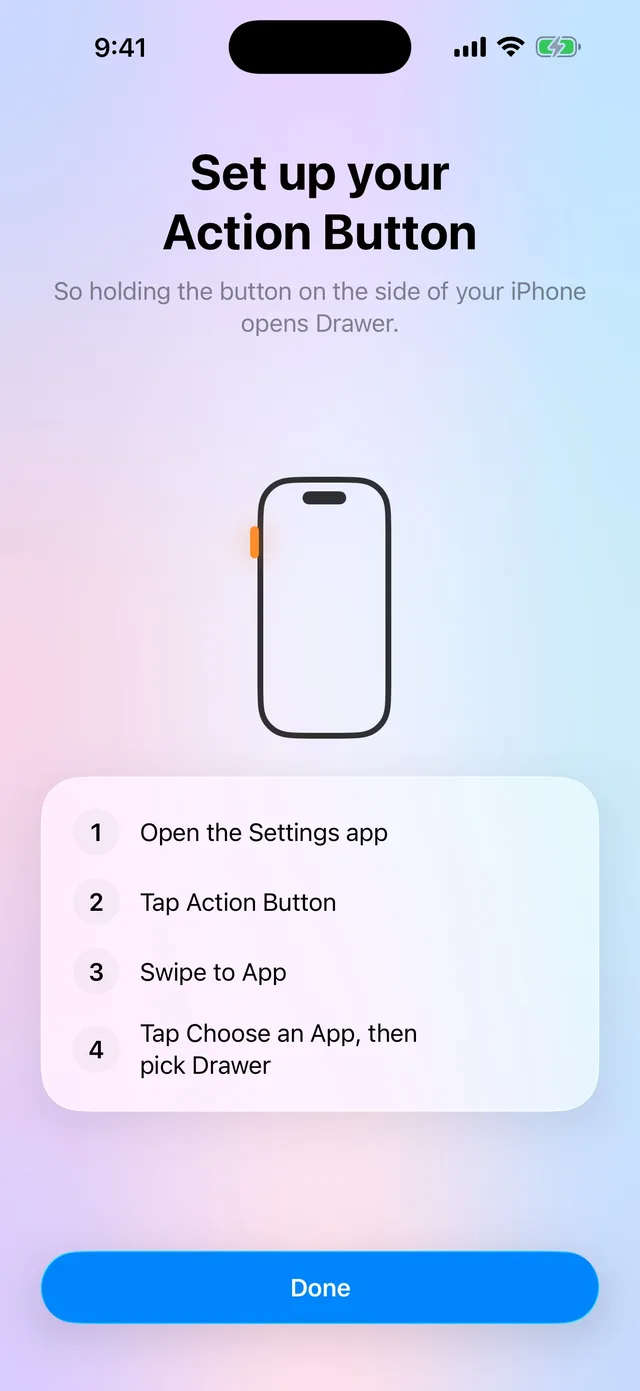
  • Set it once in Settings › Action Button › App › Drawer. Drawer shows you how.
  • No Action Button? Keep Drawer on your Home Screen or Dock instead.
Drawer’s setup guide for the Action Button: open the Settings app, tap Action Button, swipe to App, then choose Drawer.

Every app

All your favorites. Big and simple.

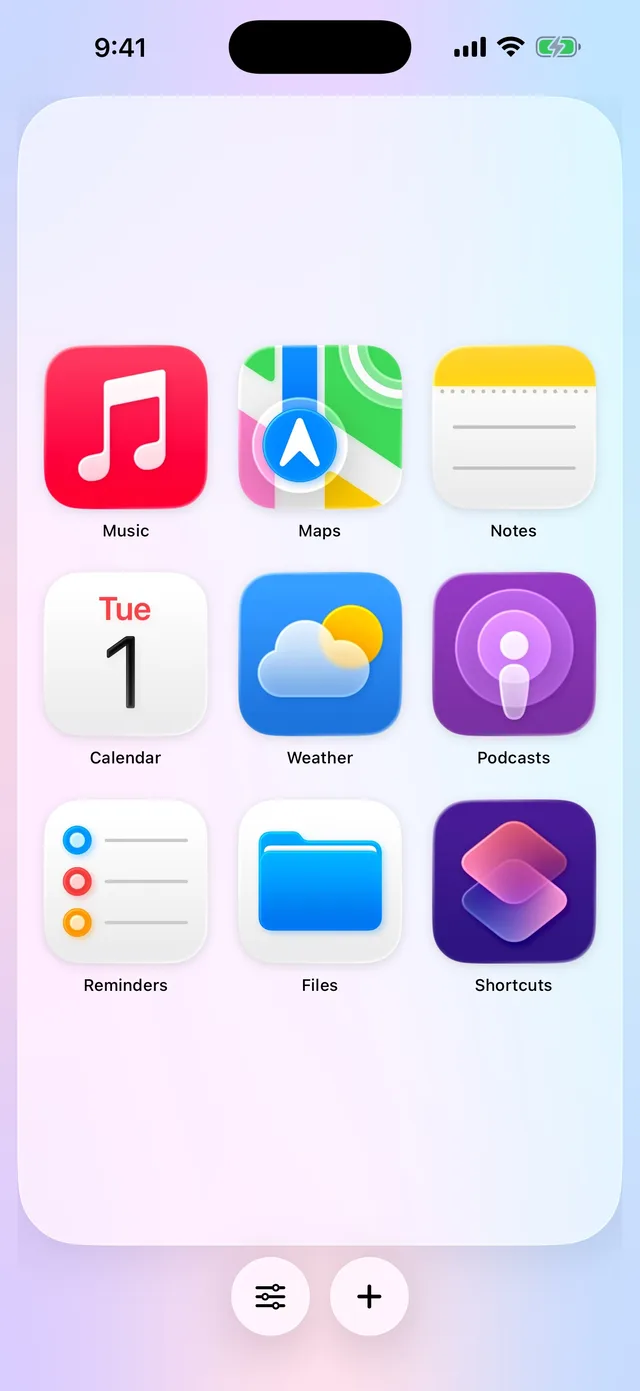
Pick the apps you reach for every day. They fill the screen as big icons, so they’re easy to see and easy to hit.

  • Fewer apps, bigger icons. Drawer sizes everything to fit the screen.
  • Make it yours. Hold an icon and drag it to a new spot.
  • Looks right at home, with the same glassy look as the rest of your iPhone.
Drawer showing nine big app icons: Music, Maps, Notes, Calendar, Weather, Podcasts, Reminders, Files and Shortcuts.

Shortcuts

Any shortcut, with its own icon.

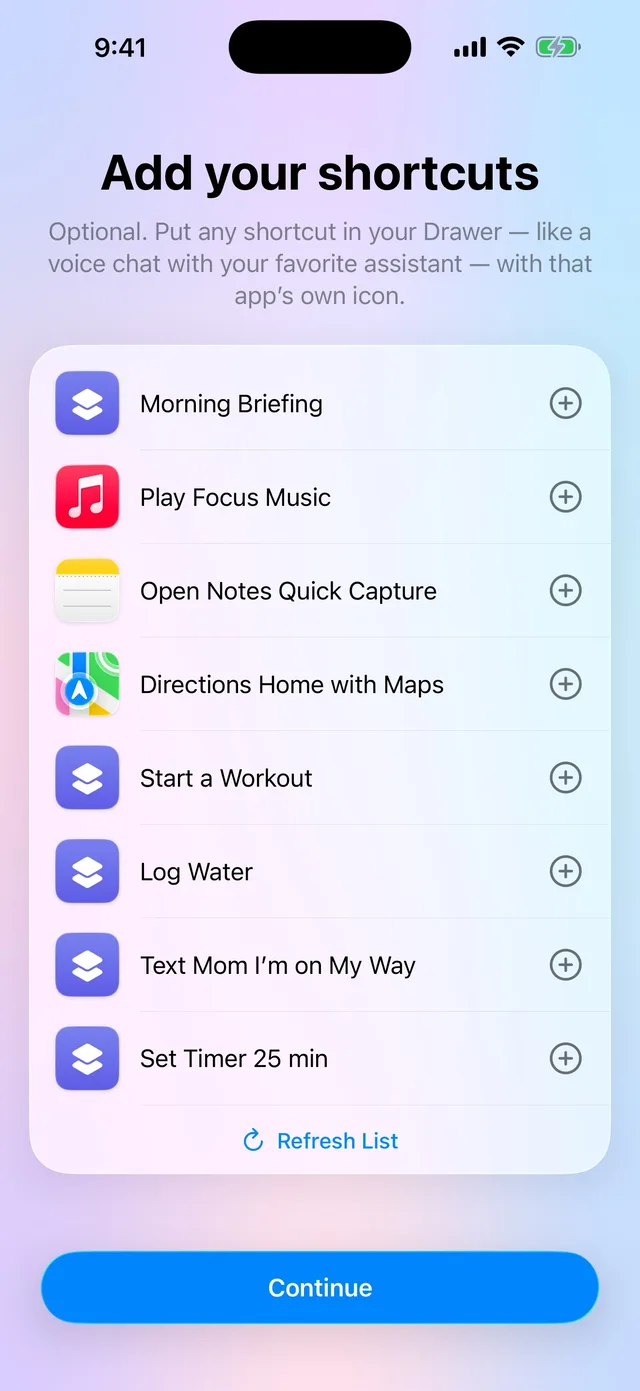
Put a shortcut right next to your apps, like a voice chat with your favorite assistant. It shows up with that app’s own icon.

  • Connect in two taps with a small helper shortcut that hands Drawer your list.
  • Pick the ones you want. Tap a shortcut to add it.
  • Made a new one? Tap Refresh List and it’s there.
A list of shortcuts to add to Drawer, each with the icon of the app it opens.

Set up in a minute

Drawer walks you through it.

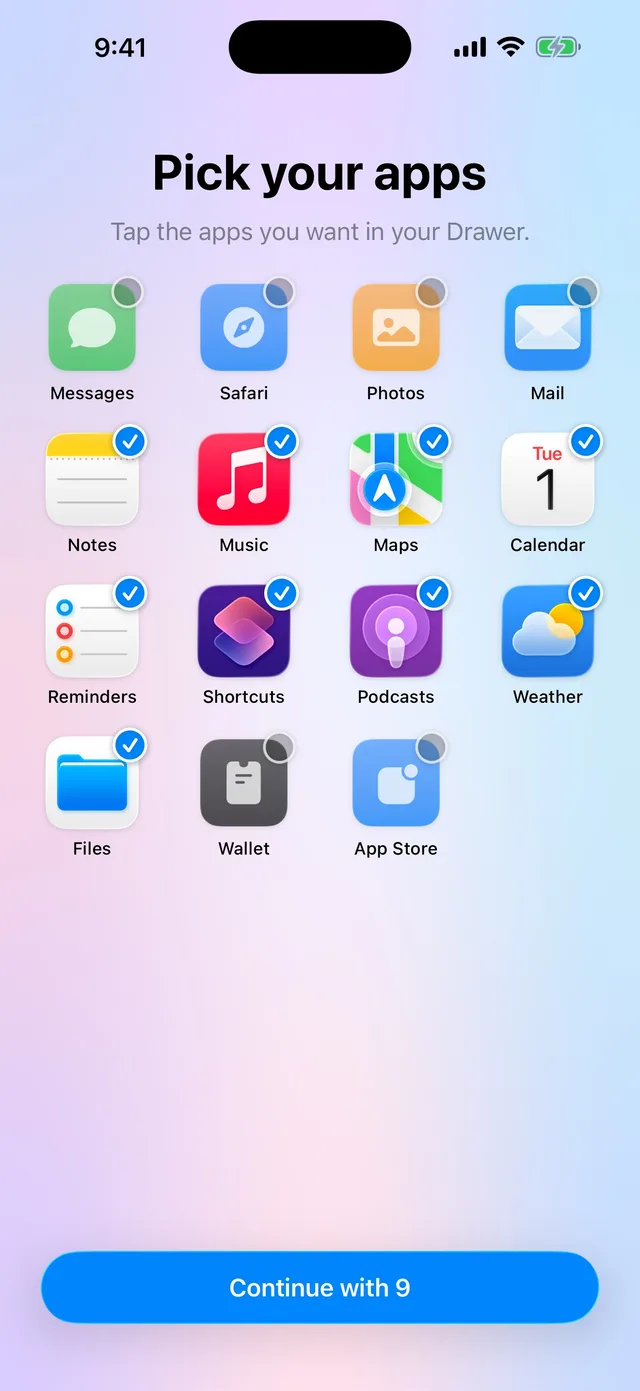
The first time you open it, a short guide gets everything ready.

  1. Pick your apps

    Drawer finds well-known apps on your iPhone. Tap the ones you want.

  2. Add your shortcuts

    Connect your shortcuts in two taps, then choose which ones to show.

  3. Set the Action Button

    Point it at Drawer, and you’re done.

No account. Your list stays on your iPhone.

Your apps, your shortcuts and their order are kept only on your iPhone. No sign-in, no ads, no tracking and no analytics. We never receive anything about you. Read the privacy policy.

One button. Everything you need.

Drawer on the App Store

Coming soon to the App Store. Free for iPhone.